Why I Chose Pages CMS Over WordPress for My Personal Blog
Here’s a funny thing about my work: I build WordPress websites for churches, nonprofits and small businesses all the time. I’ve written a whole series on Divi. I’ll keep recommending it.
And my own blog doesn’t run on WordPress anymore.
That surprises people, so let me explain. This site used to be a WordPress site. When I moved it off, I gave up the dashboard I’d used for years. A few weeks ago I moved it to Cloudflare and added an editor so I could write in my browser again. This week I switched that editor to Pages CMS, and it’s the one I’m keeping. Here’s why, and how to tell whether it would fit you.
What Pages CMS is
Pages CMS is a free, open-source editor for websites whose files live on GitHub. A CMS (content management system) is simply the place you go to write and publish, the way the WordPress dashboard is for most people.
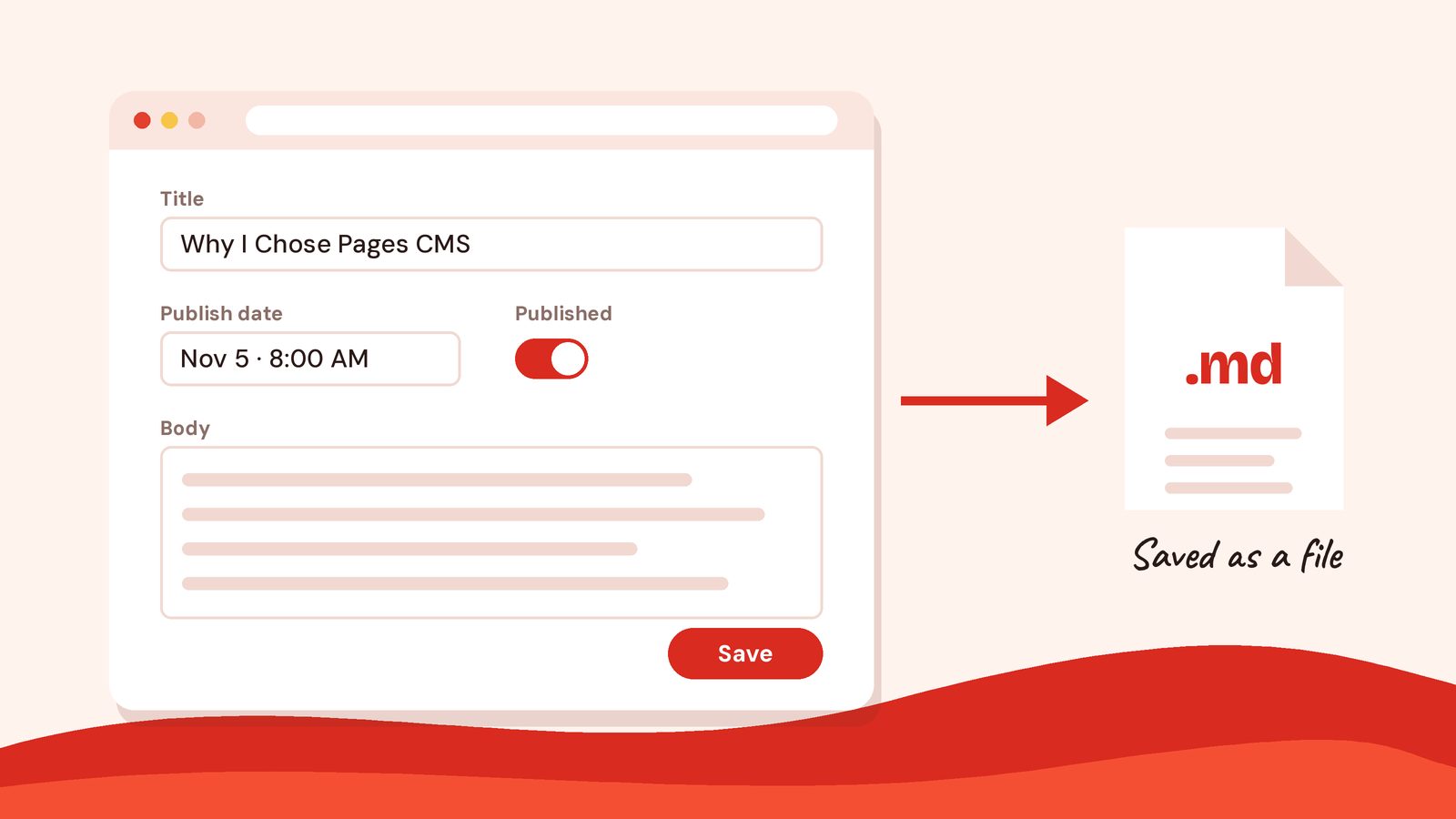
The difference is where your writing ends up. WordPress keeps your posts in a database on your web host. Pages CMS doesn’t have a database at all. When I click save, it writes my post as a plain text file in my website’s files on GitHub. Cloudflare notices the change, rebuilds the site, and the post is live a few minutes later.
From my side, it feels a lot like WordPress. I sign in at app.pagescms.org, click Add an entry, and fill in a title, a publish date, a description and the post itself.
Why not just go back to WordPress?
WordPress is a great tool. It’s also a lot of tool for one person writing a blog. Here’s what I didn’t want to take on again.
Updates and upkeep
A WordPress site needs care. WordPress itself, the theme and every plugin need updates. Updates need backups. Every so often something breaks, and you spend a Saturday figuring out which plugin did it. For a client with a care plan, that’s handled. For my personal blog, it was one more thing on my list.
My site now is just files. There’s nothing to patch and no plugin to keep up with, and Pages CMS is hosted for me, so there’s nothing to update there either.
Cost
I pay nothing for hosting or for my editor. Cloudflare’s free plan hosts the site, and Pages CMS is free to use. Good WordPress hosting is worth paying for, but for a personal blog, free and fast is hard to beat.
Speed and security
A site made of plain files loads quickly, because there’s no database to ask every time someone visits. It also gives attackers much less to aim at: no login page on my site, no plugins with security holes, no database to break into.
I own every word
This is the one I care about most. Every post I’ve ever written lives in my own files, as plain text, with every change saved in its history. If I ever leave Pages CMS, my posts don’t go anywhere. I just pick a different editor and point it at the same files.
Why Pages CMS and not another editor
I’ll be honest: Pages CMS wasn’t my first choice. When I moved to Cloudflare, I set up a different git-based editor that ran from my own site. It worked. But it needed its own sign-in code running on my site, and that was one more piece I had to look after.
Pages CMS is hosted for me. I sign in with my GitHub account, and that’s it. When I switched, I got to delete the sign-in code I’d been maintaining. Less to look after is the whole point.
A few other things won me over:
- It edits more than posts. My legal pages and my website portfolio are in the same editor, each with its own form.
- It keeps my posts exactly as I wrote them. The body is a plain Markdown editor, so the shortcuts I use for YouTube videos and signup forms are saved exactly as I typed them. A fancier editor would try to rewrite them.
- Drafts and scheduling work the way I expect. I can switch off Published to keep a draft, or set a future date and let the post go live on its own.
- I can invite help. Pages CMS can invite a collaborator by email, even if they don’t have a GitHub account.
- One sign-in, two sites. The same account edits this blog and chiltonsites.com.
What you give up
I don’t want to pretend this is easy. A setup like mine has real trade-offs:
- Someone has to set it up. Pages CMS reads a small settings file that lists each field it shows. I did mine with Claude, my AI assistant, and it still took a few rounds to get right.
- There’s no plugin store. Want a contact form, an online store or event registration? With WordPress, you install a plugin. With a site like mine, you connect an outside service. My forms run on Tally, and my email list is on SendFox.
- You wait a few minutes. Every save starts a rebuild, so a change takes about five minutes to show up instead of appearing instantly.
- No page builder. I write posts in Pages CMS. If I want to change how a page looks, that’s still a job for code.
Which one should you choose?
I recommend Pages CMS if:
- You’re writing a personal blog or running a small, simple site.
- One person, or a small team, does the writing.
- You (or someone who helps you) are comfortable with GitHub and a static site builder like Jekyll, Hugo or Astro.
- You’d rather pay nothing and maintain nothing.
I recommend WordPress if:
- Several staff members or volunteers edit the site.
- You need donations, events, a store or memberships built in.
- You want to design pages yourself with a visual builder like Divi.
- You need a big community of plugins, themes and people who know the platform.
For most churches and businesses, that second list is still the right one. That’s why I keep building WordPress sites for clients. For my own writing, I wanted the simplest thing that could possibly work.
Start with how you work
Before you pick any tool, ask yourself three questions. Who’s going to write here? How often? And who’s going to keep the site running a year from now?
If the answer is “me, every week, and also me,” pick the setup that gets out of your way. For me, that’s Pages CMS. A blog you can’t easily update is a blog you stop updating, and I want to keep showing up here.
If you’d like help figuring out which setup fits your church, nonprofit or business, book a time to talk with me or email me at katie@katieallred.com.
<details>
  <summary>What is Pages CMS?</summary>
  <p>Pages CMS is a free, open-source content editor for websites whose files live on GitHub. You sign in at app.pagescms.org, open your site, and write in your browser. Each save becomes a commit to your site's files, and your host rebuilds the site from there.</p>
</details>
<details>
  <summary>Do I need to know how to code to use Pages CMS?</summary>
  <p>Not to write. Once the site is set up, writing a post means filling in a title, a date and the text, much like WordPress. Someone does need to set up the site and a small settings file that tells Pages CMS which fields to show.</p>
</details>
<details>
  <summary>Should my church or business leave WordPress?</summary>
  <p>Probably not. If several people edit the site, or you need forms, events, donations or a store built in, WordPress is still what I recommend. Pages CMS shines for a simple blog or small site run by one person or a small team.</p>
</details>